How to Choose Small Business Cloud Backup in 2026
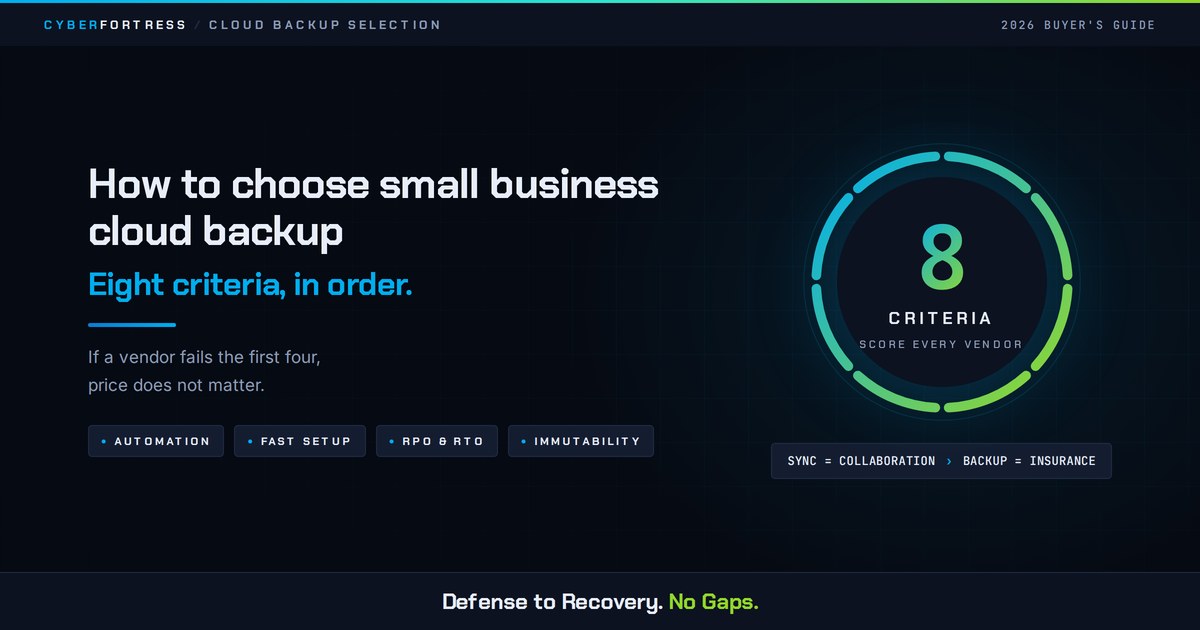
The right cloud file backup for a small business protects every place your files live, runs on its own every day, proves it can restore, and costs the same next month as it did this month. If you have no IT team, weigh two things above everything else: how little setup it needs, and how fast a real person can get your files back.
What is cloud file backup for small business?
Cloud file backup is a service that copies your business files to a secure offsite location on a schedule, keeps multiple historical versions, and lets you restore them after accidental deletion, hardware failure, or a ransomware attack. It is not the same as cloud storage, which holds one live copy of a file, and it is not the same as sync, which mirrors changes in both directions.
For a small business, the working definition is simpler. Cloud file backup is the thing that lets you say “we lost a day” and still open on Monday.
Cloud backup vs cloud sync: what is the difference?
Sync keeps files identical across devices. Backup keeps files recoverable across time. That distinction is the most expensive misunderstanding in small business data protection.
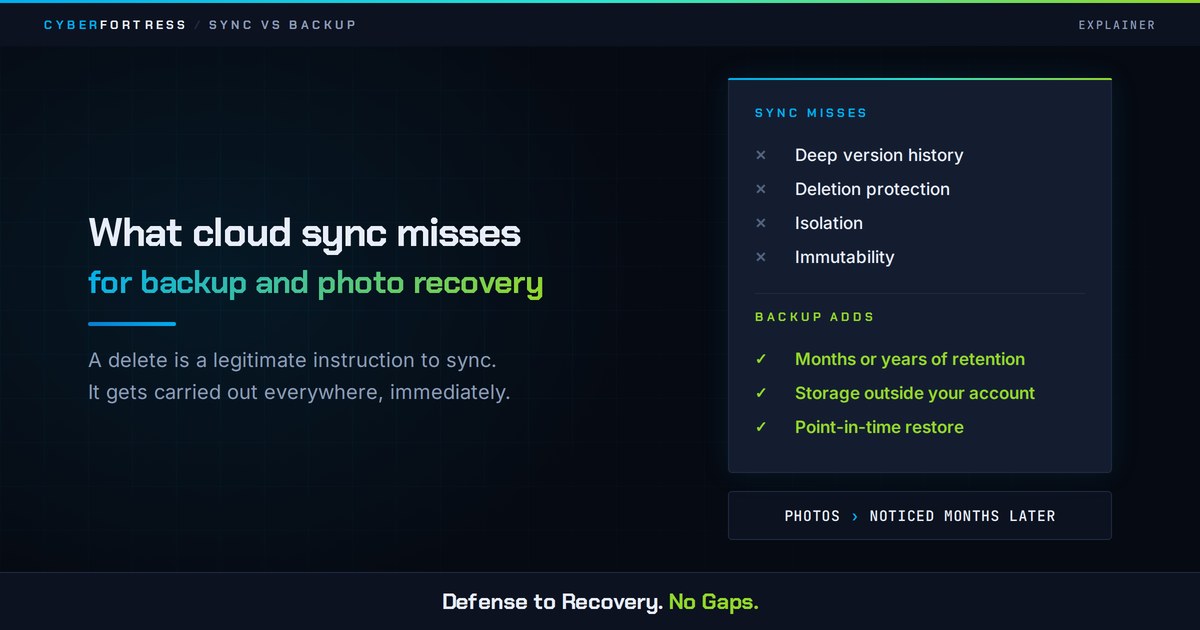
Sync tools such as Google Drive, OneDrive, and Dropbox hold one live copy, propagate every change instantly, and offer limited version history. If a file is encrypted or deleted, that change follows the file to every device, correctly, in seconds, exactly as designed.
Backup keeps separate copies stored apart from production, holds them for weeks or years, and restores your data to a specific point in time before the damage happened.
The verdict: sync is collaboration, backup is insurance. Most small businesses need both, and the ones who learn the difference usually learn it during a recovery.
Why is choosing backup harder in 2026 than it was five years ago?
Because the data moved and the threats got patient. A ten-person company now spreads files across laptops, a NAS in a closet, a Windows server, Microsoft 365 or Google Workspace, and a handful of SaaS apps. At the same time, attackers go after backup repositories first, and cyber insurers and enterprise customers increasingly ask you to document how you protect and restore data before they sign anything.
Three practical consequences for your shortlist:
Coverage beats capacity. A cheap plan that only protects laptops still leaves your server, NAS, and Microsoft 365 data exposed, and the gap stays invisible until the day you go looking for a file.
Immutability is no longer optional. If ransomware can reach and delete your backup, you do not have a backup.
Someone still has to own it. Automated backup solutions remove the daily labor. A human still has to confirm that restores work, and that job goes unassigned in most small businesses.
What should a small business owner look for in a simple, affordable cloud file backup service?
Eight criteria, listed in the order that actually predicts whether you recover. If a vendor fails the first four, price does not matter.
Criterion 1: Automatic daily protection with no human in the loop
Backups should run without anyone remembering to start them. Look for continuous or daily scheduling, automatic retries after failed jobs, protection that follows laptops onto any network, and failure alerts that reach a person by email or text.
An alert that lands in a dashboard nobody opens is a backup that stopped working in silence, on a date you will eventually have to look up.
Criterion 2: Deployment you can finish in an afternoon
Genuinely IT-free backup services install with one lightweight agent or an agentless connector, discover what needs protecting, and apply a sensible default policy out of the box. If onboarding needs a project plan and a spreadsheet, it will not survive contact with a busy small business.
Ask how long a typical customer of your size takes to reach full protection, and ask for that answer in hours. Deployments that stall halfway leave you paying for coverage you do not have.
Criterion 3: A recovery time you can put in writing
Ask every vendor for two numbers. RPO, or recovery point objective, is how much data you can afford to lose, measured in time. RTO, or recovery time objective, is how long until people are working again. For most small businesses, a 24-hour RPO with same-day recovery of critical files is a reasonable floor.
A vendor who cannot state these numbers is selling you storage and calling it recovery. Start with RTO and RPO objectives explained so you can push back on the answer you get.
Criterion 4: Immutable, isolated copies
Your backup should be written once, stored where your production credentials cannot delete it, and locked for a defined retention period even if an administrator account is compromised. Ask specifically about immutable or object-lock storage, multi-factor authentication on the backup console, and whether deletion requests carry a delay.
Attackers ask these same three questions when they get in, and they usually get answers faster than the people who own the account. This single feature is the difference between a bad week and a closed business.
Criterion 5: Coverage for every place your files live
Write down your laptops and desktops, physical servers, virtual machines, NAS devices, Microsoft 365 or Google Workspace tenants, and any line-of-business application with its own database. Then confirm each item appears on the vendor’s supported list in the specific plan you are quoted. Enterprise-tier capability lists have a way of shrinking once the invoice is written.
The systems nobody wrote down are the ones that surface during recovery. Endpoint, server, and SaaS backup are separate line items for a reason.
Criterion 6: Proof, and not a green checkmark
A successful backup job is evidence that data moved. Restoring it is the only evidence that data comes back. Look for automated recovery verification, self-service test restores you can run whenever you like, and a report you can hand to an auditor, an insurer, or a customer’s security questionnaire without editing it first.
Criterion 7: Pricing you can forecast
Affordable cloud storage stops being affordable the moment it is metered in ways you cannot predict. Favor per-device or per-user pricing with retention included, and get written answers on four things: overage rates, restore and egress charges, the cost of extending retention, and what happens to your rate at renewal.
A cheap monthly rate with metered recovery is a bill that arrives on your worst day.
Criterion 8: Support that answers during an outage
The day you need backup is the day you will need help. Compare support hours against your actual business hours, ask whether recovery assistance is included or billed hourly, and ask how fast a named human joins a live recovery.
Then check whether that promise appears anywhere in the contract. Support that exists only in the sales deck evaporates at 2 a.m.
How much should small business cloud backup cost in 2026?
As a planning range, expect roughly $5 to $15 per device per month for file-level protection with useful retention, more per server, per virtual machine, or per terabyte once you add image-based backup and managed service.
Use price as a sanity check. Something dramatically cheaper is usually a storage bucket wearing a backup label, with no verification, no immutability, and no one to call. Something dramatically more expensive should come with managed monitoring, tested restores, and recovery support attached, and you should be able to see those line items.
Four costs that surprise people: restore or egress charges when you actually need your data, retention beyond the default window, per-seat charges for Microsoft 365 backup, and support tiers that put emergency recovery help behind a paywall. Every one of those bills arrives on the day you have the least leverage to argue about it.
Should a small business run backup itself or have it managed?
Run it yourself if you have technical staff with genuine capacity, a small number of systems, and someone whose calendar includes checking backup reports and running restore tests every month. Choose a managed service if you have no dedicated IT, multiple locations, compliance or insurance obligations, or a team already stretched thin.
Configuring backup software is the easy part. The honest test is whether anyone will notice on day nine that a job has been failing since day one.
How do you choose cloud file backup, step by step?
Step 1: Inventory what you would miss
List every location that holds files you could not rebuild from memory: laptops, servers, NAS, Microsoft 365, Google Workspace, accounting and CRM systems, and shared drives. Note roughly how much data each holds.
This one page becomes your requirements document and your quote comparison sheet. It also tends to surface a system nobody has been protecting, which is worth the twenty minutes on its own.
Step 2: Set your tolerance for loss
Decide how many hours of work you could afford to redo, and how long you could operate without your files. Those two answers are your RPO and RTO, and they eliminate most of the market immediately.
Step 3: Shortlist three vendors against the eight criteria
Score each one on automation, deployment effort, stated RPO and RTO, immutability, coverage, verification, pricing clarity, and support. Three is enough. More than three turns into a research project you will abandon, and an abandoned evaluation leaves you exactly where you started.
Step 4: Run a trial, then run a real restore
During the trial, protect one laptop and one server, wait for the schedule to run unattended, then restore a folder, a full device, and one Microsoft 365 mailbox. Time each restore yourself.
Vendor demos restore small files on fast networks. Your own test is the only number that will hold up on a bad day.
Step 5: Read the contract for the exit
Check the term length, renewal price protection, what happens to your data if you cancel, how long you can retrieve it, and whether there is a fee to get it out.
Easy deployment backup tools are common. Easy departure is rarer, and how a vendor handles the exit tells you how confident they are in the middle.
What are the red flags when evaluating a backup provider?
Every item here has cost somebody their data. Read them as a list of things that already happened.
No stated RPO or RTO, or an unwillingness to put either in writing.
Backups stored in the same account, tenant, or credential boundary as production data, so one phished login reaches the originals and the copies.
No immutability or object lock, and no answer about protecting the backup console with multi-factor authentication.
Restore fees, egress fees, or an emergency support charge that only appears in the fine print.
No self-service test restore, so the first real restore you ever perform happens during an actual incident, on the clock, in front of everyone.
Microsoft 365 or Google Workspace described as “already backed up by the provider,” which is not what native retention does.
A dashboard that reports job success but never verifies recoverability.
What questions should you ask every cloud backup vendor?
Ask these in one sitting and watch which answers arrive in a sentence and which arrive in a follow-up email.
- What is my RPO and RTO for a single file, a full laptop, a server, and a Microsoft 365 mailbox?
- How long does full onboarding take for a business my size, in hours?
- Is backup data immutable, and can my own admin credentials delete it?
- What exactly is included in the quoted price, and what is metered?
- Are there any restore, egress, or emergency support fees?
- How do you verify that a backup is actually recoverable, and can I see a sample report?
- Can I run a test restore myself, without opening a ticket?
- Who joins the call during a live recovery, and within how many minutes?
- What retention is included, and what does extending it cost?
- If I leave, how do I get my data, in what format, and at what price?
This is exactly what CyberFortress was built to fix.
Endpoint Backup & Recovery, Server Backup & Recovery, and Microsoft 365 backup give small businesses without a bench of specialists exactly the coverage this guide argues for: laptops and desktops, servers, NAS, and Microsoft 365 or Google Workspace.
Behind all of it are 24/7 U.S.-based recovery specialists who answer the phone on the first ring, with thousands of live recoveries behind them. When this guide says ask who joins the call, we are the team that joins the call.
If you want the short version of everything above: choose the provider that can tell you, in writing and in minutes, how you get your files back.
Disclaimer: This post is general guidance written for a general audience. It does not constitute legal, regulatory, or incident-response advice for any specific organization or situation. Breach notification requirements, recovery obligations, and insurance conditions vary by jurisdiction, industry, contract, and the facts of the individual incident. Confirm what applies to you with your own legal counsel, your cyber insurance carrier, and your incident response provider before acting on anything described here.
If you are dealing with an active incident, contact your legal counsel and your incident response team first.
Frequently Asked Questions
Is Google Drive, OneDrive, or Dropbox enough for small business backup? No. Those are sync and storage services with limited version history. If a file is deleted, corrupted, or encrypted by ransomware, the change replicates to every connected device, and recovery windows are short. Use them for collaboration and add real backup for recovery.
How often should a small business back up its files? Daily at an absolute minimum, and continuously or several times a day for anything your business runs on, such as accounting files, project directories, and shared drives. The right frequency is whatever matches how many hours of work you are willing to redo.
What is the 3-2-1 backup rule, and does it still apply in 2026? The 3-2-1 rule means keeping three copies of your data on two different types of storage with one copy offsite. It still applies, and most practitioners now extend it to 3-2-1-1-0: one of those copies immutable or offline, and zero errors after verified recovery testing.
Can I back up files without installing software on every device? Partly. Agentless and API-based approaches work well for Microsoft 365, Google Workspace, virtual machines, and many NAS devices. Laptops and desktops usually still need a lightweight agent, which is what makes protection follow the device off your network.
How long should a small business keep backups? Thirty to ninety days of retention covers most accidental deletions and the dwell time of a typical ransomware intrusion. Regulated data, contracts, and financial records often need years, so check your industry requirements and your insurance policy before choosing the cheapest retention tier.
Does cloud backup cover Microsoft 365 automatically? Not by default. Microsoft protects its own infrastructure, and protecting your data from your own mistakes is your responsibility. Native retention windows are limited. If Exchange, SharePoint, OneDrive, and Teams data matters to your business, back it up separately.
How do I know my backup actually works? Restore something on a schedule. Pick a folder every month and a full device every quarter, time the recovery, and write down the result. Until that number exists, your recovery plan is a belief.
What should a small business do first after a ransomware attack? Isolate affected systems from the network, do not wipe or rebuild anything yet because it destroys evidence, then contact your backup provider, your insurer, and legal counsel before restoring. Recover from a verified immutable copy into a clean environment, and work through the recovery sequence before anyone touches production.
Next Step
Make the list from Step 1 today. It takes twenty minutes, it usually surfaces at least one system nobody is protecting, and it turns backup from a vague worry into a decision you can actually make.
A backup you’ve never restored is just a guess. CyberFortress turns that guess into a number you can show your insurer, your auditor, and your board.
Test Your Fortress · Talk to a Recovery Specialist
Related reading: Ransomware recovery · The SMB Data Protection Blueprint · BaaS vs DRaaS: understanding the difference
A backup you have never restored is a guess. Trinity turns it into proof.
Seven questions show where your recovery plan stands today. Or skip ahead and talk to a CyberFortress recovery specialist about your environment.
More from the Fortress
-
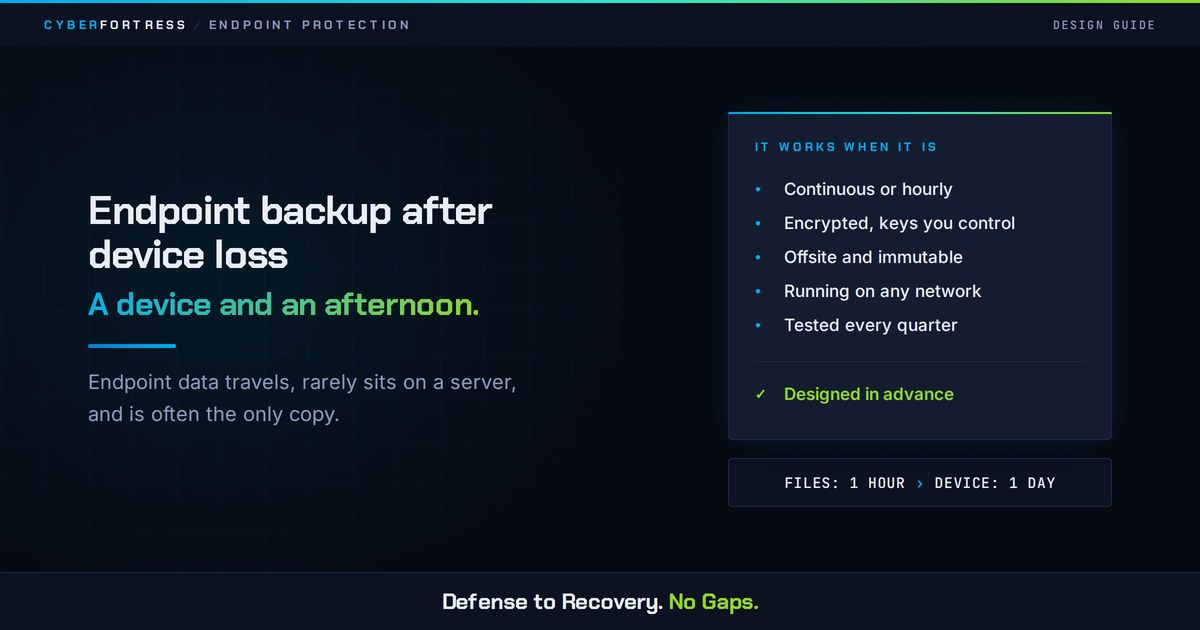
Small Business Endpoint Backup After Device Loss
Endpoint backup works when it is continuous, encrypted, offsite, independent of the device, and tested. A stolen laptop…
-
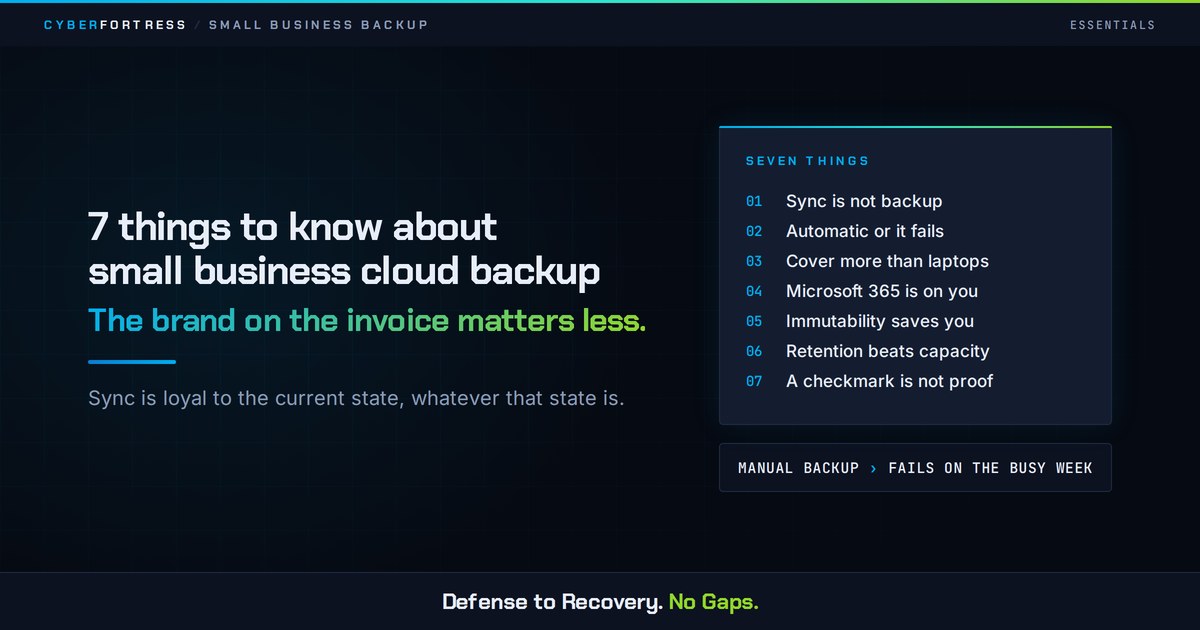
7 Things to Know About Small Business Cloud Backup
Seven things decide whether small business cloud backup works: sync is not backup, protection must be automatic, coverage…
-
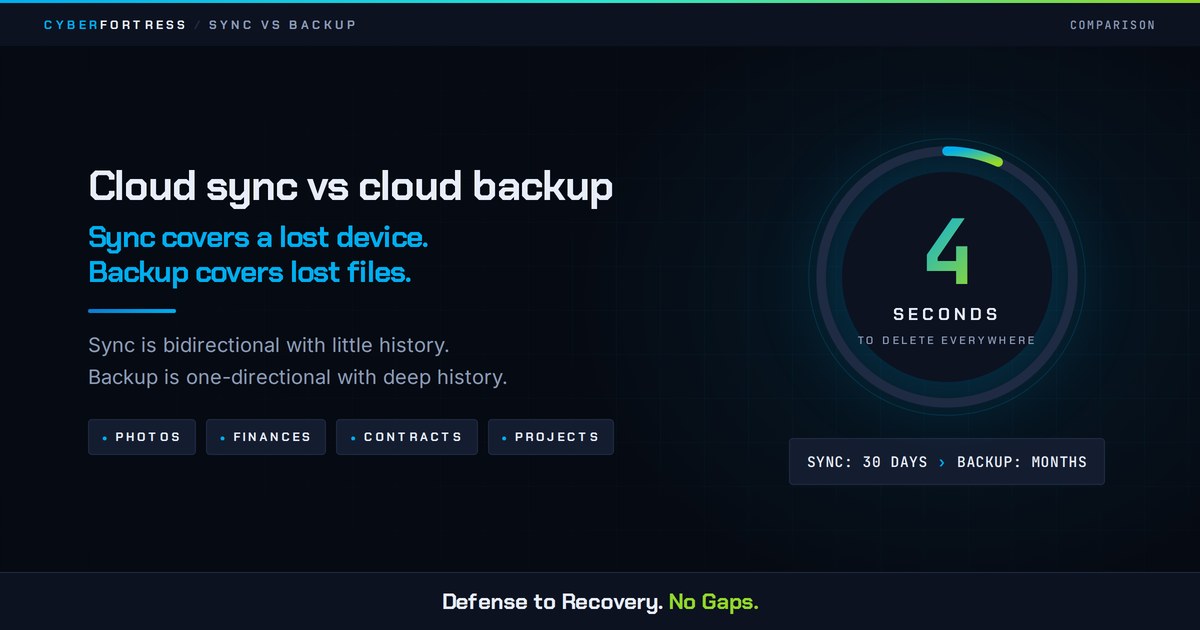
Cloud Sync vs Cloud Backup for File Protection
Cloud sync keeps one live copy of a file consistent across your devices. Cloud backup keeps many historical…
-
What Cloud Sync Misses for Backup and Photo Recovery
File synchronization misses history, isolation, and coverage. It keeps your current state available on every device, gives you…